
应用风扇属性
SolidWorks Flow Simulation 中的 Fan 工具用于在分析中模拟风扇的效果。创建风扇的步骤如下。
-
从
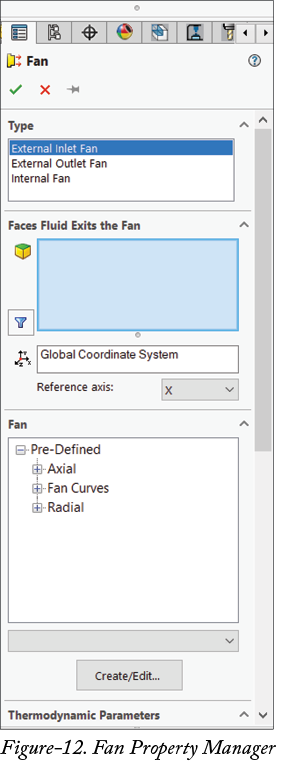
Tools>Flow Simulation>Insert> 菜单中,或从功能区中的Conditions下拉列表中单击Fan工具。将显示Fan属性管理器;请参阅图 12。 -
如果要在流体流动的入口处插入外部风扇,请从
Type区域中选择External Inlet Fan选项。如果要在流体流动的出口处插入外部风扇,请选择External Outlet Fan选项。如果风扇放置在流体流动管内部,请选择Internal Fan选项。在本例中,我们在此使用Internal Fan。
- 单击
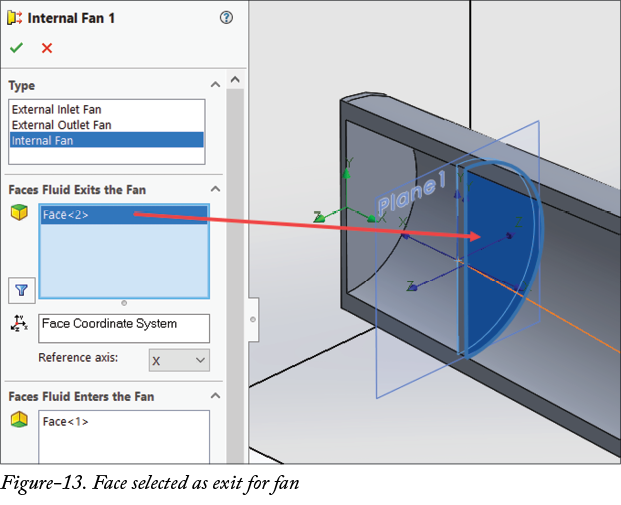
Faces Fluid Exits the Fan选择框,并选择流体通过风扇后流出的面;请参阅图 13。
- 单击
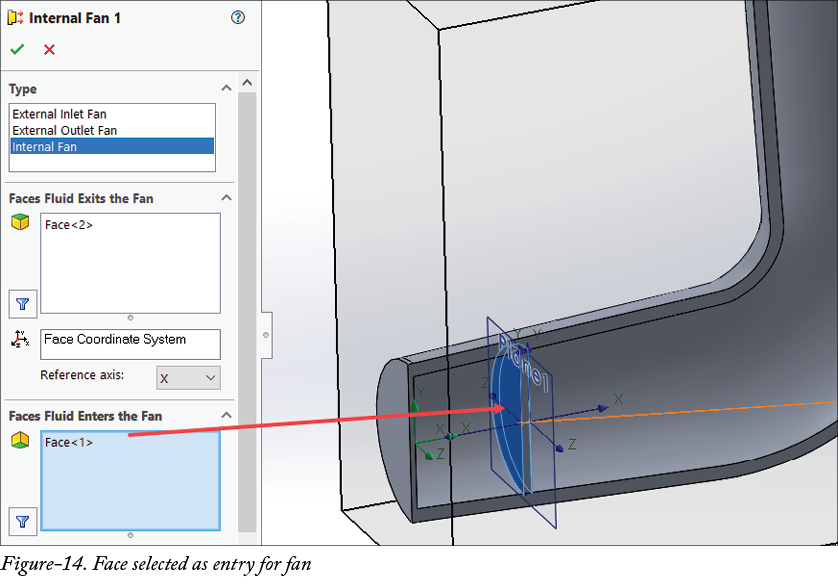
Faces Fluid Enters the Fan选择框,并选择流体进入风扇的面;请参阅图 14。
-
在
Faces Fluid Exits the Fan和Faces Fluid Enters the Fan部分中,从Reference axis下拉列表设置风扇流动方向。 -
在属性管理器中向下滚动,并从
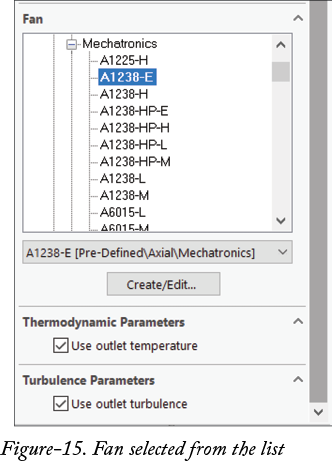
Fan列表中选择所需风扇;请参阅图 15。 -
选中
Derating复选框,以定义风扇相对于其最大性能的工作性能水平。获取降额值的公式如下:
Derated Flow rate = Derating * Original flow rate

Derated Pressure difference = (Derating)2 * Original pressure difference
- 如前所述设置其他参数,并从属性管理器中单击 OK 按钮。